






.png)
The steps below describe a command-line installation of WebTitan OTG for Mac on a single machine. You need admin privileges for a machine to complete these steps.
During installation, you will be required to:
Run two separate commands:
An install command to deploy the .PKG file.
A WebTitan configuration command that you must edit with your own parameters. The steps below provide a sample script that you can edit with your own parameters.
Allow a WebTitan system extension under the General tab in Security & Privacy Preferences.
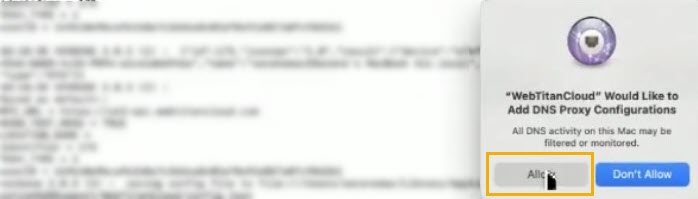
Allow the DNS Proxy Configurations pop up. A DNS proxy provider is a network extension that implements DNS proxying. WebTitan OTG for Mac uses the DNS proxy provider to forward DNS requests to the OTG DNS server, which records the DNS requests. For privacy reasons, a user must give consent to enable it.
Select your Mac operating system below and follow the steps to download and install OTG for Mac:
Step 1: Download and install your WebTitan 4K certificate.
If an SSL certificate has not been installed and a user visits an HTTPS enabled website that is blocked by a policy, their browser will return a certificate error page instead of your WebTitan block page. To avoid this, download and import the WebTitan SSL Certificate.
In WebTitan, go to Settings > Certificates and download a 4K WebTitan SSL certificate.
Install the certificate to your Mac keychain. See https://support.apple.com/en-ie/guide/keychain-access/kyca2431/mac
 .
.Ensure When using this certificate is set to Always Trust as shown below:

Step 2: Download and install WebTitan OTG for Mac.
Ensure you have administrative privileges, then follow the steps below to install WebTitan OTG for Mac.
Click here to download the WebTitan OTG for Mac install file (otg_setup.pkg). The current version of OTG for Mac is 2.0.3 (2). You need to know what folder this install file saves to in later steps.
Retrieve the OTG install key from your WebTitan Cloud. Go to Settings > Device Configuration and note the OTG Install Key:

Create the command script for installation. Base your script on the example shown below, but with parameters edited for your WebTitan.
/Applications/WebTitanCloud.app/Contents/MacOS/WebTitanCloud RPC_URL="https://your-otg-url.webtitancloud.com" INSTALL_KEY="00000z0z-0zz0-0000-zz0z-0zz000z0zz0z"There are two required parameters described in the table below that must be edited when creating your own script.
There is also an optional parameter described that you can use during installation, but it is not necessary.
The command must be on a single line with no line breaks.
Required Parameter
Description
Example
RPC_URL
Your WebTitan OTG URL and (optional) port number. See WebTitan OTG URLs to determine your OTG URL.
The RPC port is always port 7771 and is automatically added if not included in the RPC_URL parameter. The example(s) show the accepted formats.
https://your-otg-url.webtitancloud.com
INSTALL_KEY
This is the OTG install key used to register an OTG device on WebTitan. You can get this in WebTitan from Settings > Device Configuration and noting the OTG Install Key.
00000z0z-0zz0-0000-zz0z-0zz000z0zz0z
Optional Parameter(s)
Description
Example
LOCATION_NAME
When OTG 2 is installed, a virtual location is automatically created for a device on WebTitan and given a default name. However, you can specify a location name to use with the LOCATION_NAME parameter on install.
A virtual location can either be created on WebTitan before installation and then the name can be used in this parameter, or, if not already created, the virtual location is created and assigned the name given in this parameter on install.
LOCATION_NAME=Training-PCOpen a terminal and change directory to the same directory as the install file you downloaded in Step 1. To change directory, type
cdfollowed by the file path you want to change to. For example:cd ~/DownloadsRun the following command script to initiate installation:
sudo installer -pkg otg_setup.pkg -target /When you receive the notification Terminal would like to access files in the download folder?, select Allow.
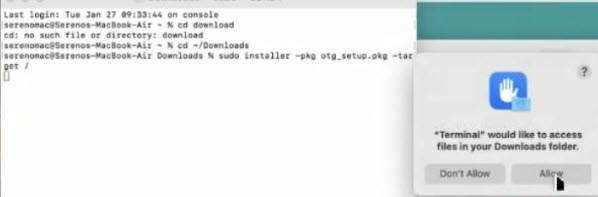
Enter your admin password if prompted.
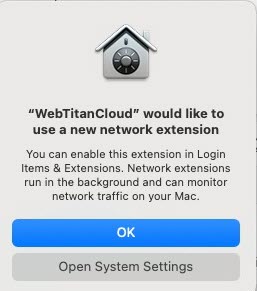
At the prompt WebTitanCloud would like to use a new network extension, select OK.
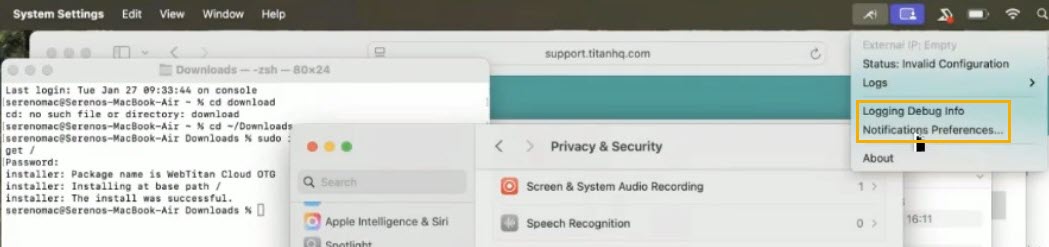
Go to Notification Preferences, and select Options.
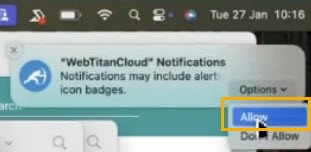
Select Allow.
Go to Login Items & Extensions > Network Extensions.
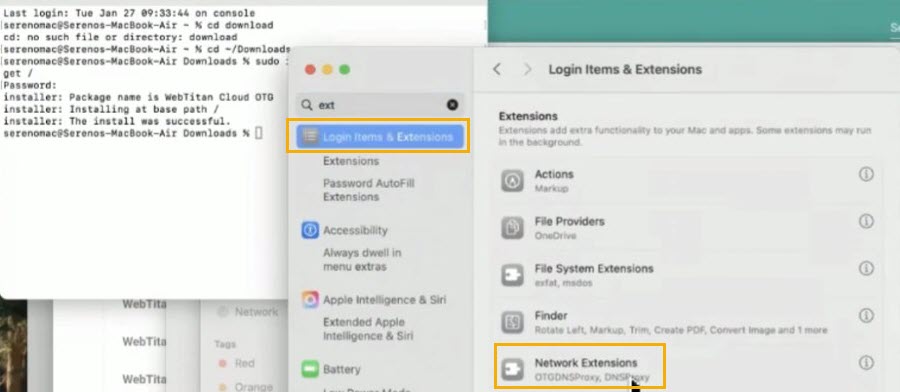
Enable WebTitan Cloud.
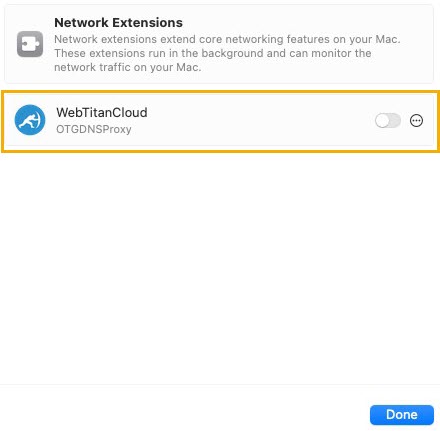
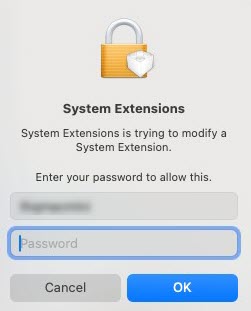
In the System Extensions pop-up, enter your password, and select OK.
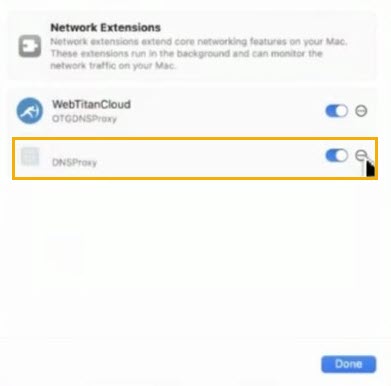
Enable DNS Proxy and select Done.
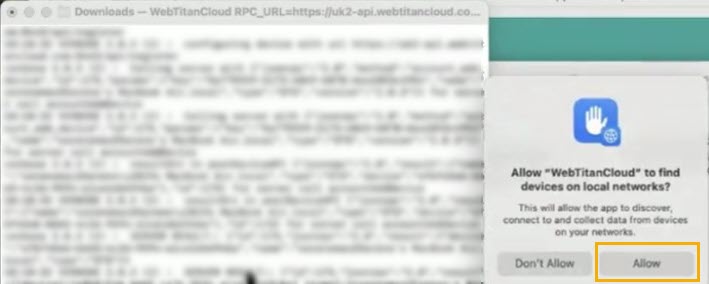
Run the script, and when prompted to Allow WebTitanCloud to find devices on local networks?’, select Allow.
When prompted by the message WebtitanCloud would like to add DNS Proxy Configurations, select Allow.
When the agent has been downloaded successfully, status will show as Connected.
Once the steps above are complete, the best way to verify the installation is to check that a device and the associated user and location have been added to WebTitan.
Step 1: Download and install your WebTitan 4K certificate.
If an SSL certificate has not been installed and a user visits an HTTPS enabled website that is blocked by a policy, their browser will return a certificate error page instead of your WebTitan block page. To avoid this, download and import the WebTitan SSL Certificate.
In WebTitan, go to Settings > Certificates and download a 4K WebTitan SSL certificate.
Install the certificate to your Mac keychain. See https://support.apple.com/en-ie/guide/keychain-access/kyca2431/mac
.Ensure When using this certificate is set to Always Trust as shown below:
Step 2: Download and install WebTitan OTG for Mac.
Ensure you have administrative privileges, then follow the steps below to install WebTitan OTG for Mac.
Click here to download the WebTitan OTG for Mac install file (otg_setup.pkg). The current version of OTG for Mac is 2.0.3 (2). You need to know what folder this install file saves to in later steps.
Retrieve the OTG install key from your WebTitan Cloud. Go to Settings > Device Configuration and note the OTG Install Key:
Create the command script for installation. Base your script on the example shown below, but with parameters edited for your WebTitan.
/Applications/WebTitanCloud.app/Contents/MacOS/WebTitanCloud RPC_URL="https://your-otg-url.webtitancloud.com" INSTALL_KEY="00000z0z-0zz0-0000-zz0z-0zz000z0zz0z"There are two required parameters described in the table below that must be edited when creating your own script.
There is also an optional parameter described that you can use during installation, but it is not necessary.
The command must be on a single line with no line breaks.
Required Parameter
Description
Example
RPC_URL
Your WebTitan OTG URL and (optional) port number. See WebTitan OTG URLs to determine your OTG URL.
The RPC port is always port 7771 and is automatically added if not included in the RPC_URL parameter. The example(s) show the accepted formats.
https://your-otg-url.webtitancloud.com
INSTALL_KEY
This is the OTG install key used to register an OTG device on WebTitan. You can get this in WebTitan from Settings > Device Configuration and noting the OTG Install Key.
00000z0z-0zz0-0000-zz0z-0zz000z0zz0z
Optional Parameter(s)
Description
Example
LOCATION_NAME
When OTG 2 is installed, a virtual location is automatically created for a device on WebTitan and given a default name. However, you can specify a location name to use with the LOCATION_NAME parameter on install.
A virtual location can either be created on WebTitan before installation and then the name can be used in this parameter, or, if not already created, the virtual location is created and assigned the name given in this parameter on install.
LOCATION_NAME=Training-PCOpen a terminal and change directory to the same directory as the install file you downloaded in Step 1. To change directory, type
cdfollowed by the file path you want to change to. For example:cd ~/DownloadsRun the following command script to initiate installation:
sudo installer -pkg otg_setup.pkg -target /At the prompt WebTitanCloud would like to use a new network extension, select OK.
Run the command:
/Applications/WebTitanCloud.app/Contents/MacOS/WebTitanCloud RPC_URL=https://demo-ui.webtitancloud.com" INSTALL_KEY="b1672097-6e68-4dc7-a36d-b4cbd3984919
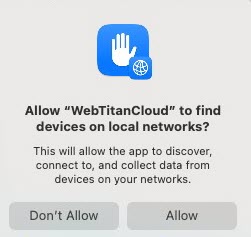
At the prompt, Allow WebTitanCloud to find devices on local networks?, select Allow.
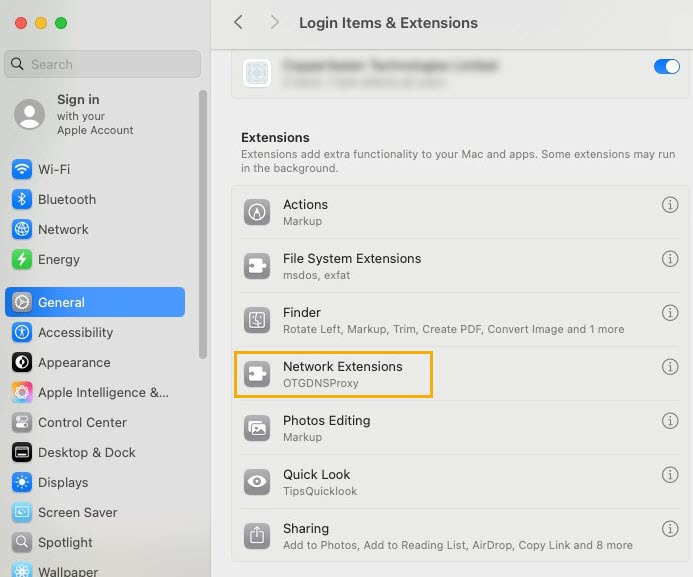
Go to General > Login items & Extensions, and select Network Extensions (OTGDNSProxy).
Enable WebTitanCloud (OTGDNSProxy).
In the System Extensions pop-up, enter the password, and select OK.
Select Done.
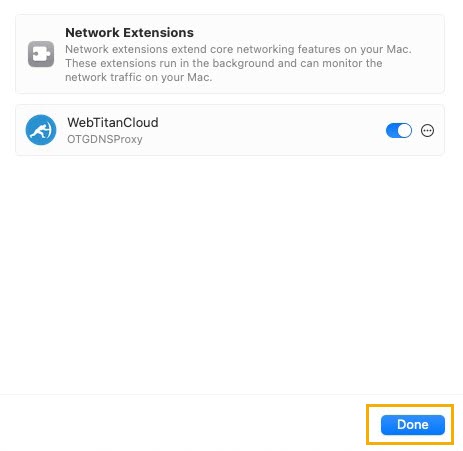
Once the steps above are complete, the best way to verify the installation is to check that a device and the associated user and location have been added to WebTitan.
Step 1: Download and install your WebTitan 4K certificate.
If an SSL certificate has not been installed and a user visits an HTTPS enabled website that is blocked by a policy, their browser will return a certificate error page instead of your WebTitan block page. To avoid this, download and import the WebTitan SSL Certificate.
In WebTitan, go to Settings > Certificates and download a 4K WebTitan SSL certificate.
Install the certificate to your Mac keychain. See https://support.apple.com/en-ie/guide/keychain-access/kyca2431/mac
.Ensure When using this certificate is set to Always Trust as shown below:
Step 2: Download and install WebTitan OTG for Mac.
Ensure you have administrative privileges, then follow the steps below to install WebTitan OTG for Mac.
Click here to download the WebTitan OTG for Mac install file (otg_setup.pkg). The current version of OTG for Mac is 2.0.3 (2). You need to know what folder this install file saves to in later steps.
Retrieve the OTG install key from your WebTitan Cloud. Go to Settings > Device Configuration and note the OTG Install Key:
Create the command script for installation. Base your script on the example shown below, but with parameters edited for your WebTitan.
/Applications/WebTitanCloud.app/Contents/MacOS/WebTitanCloud RPC_URL="https://your-otg-url.webtitancloud.com" INSTALL_KEY="00000z0z-0zz0-0000-zz0z-0zz000z0zz0z"There are two required parameters described in the table below that must be edited when creating your own script.
There is also an optional parameter described that you can use during installation, but it is not necessary.
The command must be on a single line with no line breaks.
Required Parameter
Description
Example
RPC_URL
Your WebTitan OTG URL and (optional) port number. See WebTitan OTG URLs to determine your OTG URL.
The RPC port is always port 7771 and is automatically added if not included in the RPC_URL parameter. The example(s) show the accepted formats.
https://your-otg-url.webtitancloud.com
INSTALL_KEY
This is the OTG install key used to register an OTG device on WebTitan. You can get this in WebTitan from Settings > Device Configuration and noting the OTG Install Key.
00000z0z-0zz0-0000-zz0z-0zz000z0zz0z
Optional Parameter(s)
Description
Example
LOCATION_NAME
When OTG 2 is installed, a virtual location is automatically created for a device on WebTitan and given a default name. However, you can specify a location name to use with the LOCATION_NAME parameter on install.
A virtual location can either be created on WebTitan before installation and then the name can be used in this parameter, or, if not already created, the virtual location is created and assigned the name given in this parameter on install.
LOCATION_NAME=Training-PCOpen a terminal and change directory to the same directory as the install file you downloaded in Step 1. To change directory, type
cdfollowed by the file path you want to change to. For example:cd ~/DownloadsRun the following command script to initiate installation:
sudo installer -pkg otg_setup.pkg -target /At the prompt WebTitanCloud would like to use a new network extension, select OK.
Run the command:
/Applications/WebTitanCloud.app/Contents/MacOS/WebTitanCloud RPC_URL=https://demo-ui.webtitancloud.com" INSTALL_KEY="b1672097-6e68-4dc7-a36d-b4cbd3984919
Go to General > Login items & Extensions, and select WebTitanCloud (Network Extension).
Enable Network Extension.
In the Login Items pop-up, enter the password, and select OK.
Select Done.
Once the steps above are complete, the best way to verify the installation is to check that a device and the associated user and location have been added to WebTitan.
 1.png)